








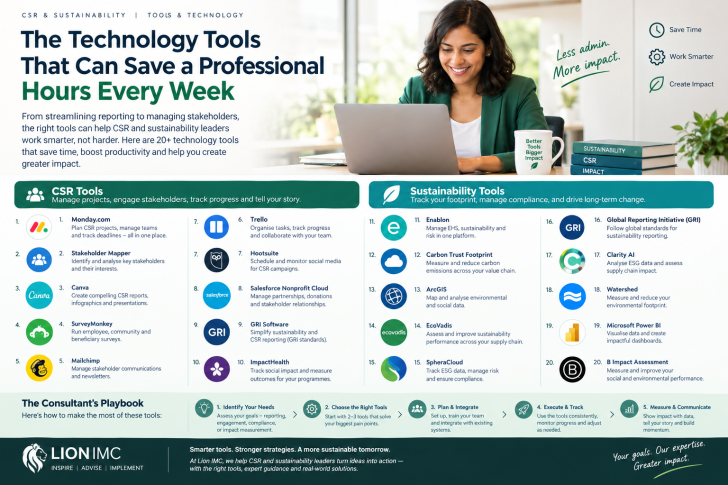
We have heard it time and time again, being busy is not the same as being productive
A professional’s day can disappear into activities that feel like work but leave surprisingly little time for the work that matters.
You spend an hour searching for a document someone sent last week. You sit through a meeting and then spend another 30 minutes writing minutes and chasing action points. You copy information from one spreadsheet into another, prepare a report from scratch and answer emails that seem to generate three more emails.
By the end of the day, you have been busy. But have you made meaningful progress on your most important priorities?
This is where technology can make a difference.
The objective is not to download every productivity app, subscribe to every artificial intelligence tool or turn your working life into a complicated collection of dashboards. It is to identify repetitive tasks, simplify the way information moves and reduce the administrative work that consumes valuable time.
For example, Google Workspace’s Gemini features can help eligible users summarise email threads, draft documents and assist with meeting notes. Notion’s AI and project-management features can help teams organise projects, summarise information and extract action items. The precise features available depend on the product and subscription plan.
The lesson is simple: the best technology tool is not necessarily the one with the most features. It is the one that removes a recurring problem from your working day.
10 technology tools to know
1. Ten tools worth knowing and what to use them for
The tools below cover different types of work. You do not need all of them; start with the tasks that consume most of your time.
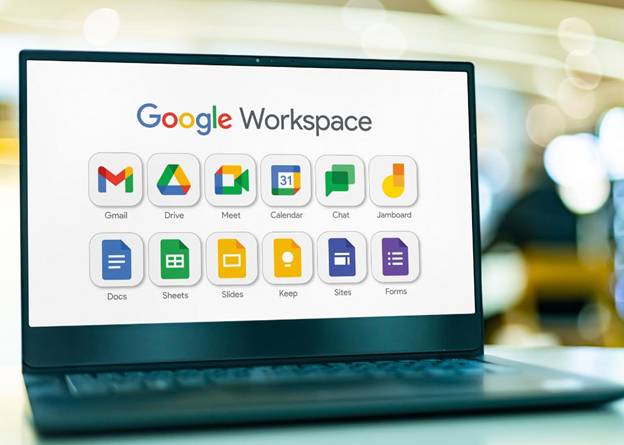
Google Workspace with Gemini
1. Google Workspace with Gemini
Emails, documents, spreadsheets and meetings
Draft and refine emails, summarise long conversations, work with documents and spreadsheets, and assist with meeting notes. Particularly useful when your work already happens in Gmail, Docs, Sheets and Drive. Some features require eligible plans.
Website: workspace.google.com
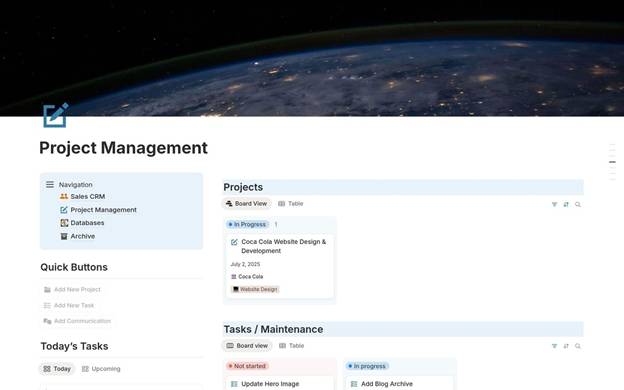
Notion
2. Notion
Project organisation and knowledge management
Keep projects, notes, deadlines, meeting decisions and standard operating procedures in one workspace. AI features can help summarise documents, create action plans and extract next steps.
Website: notion.com
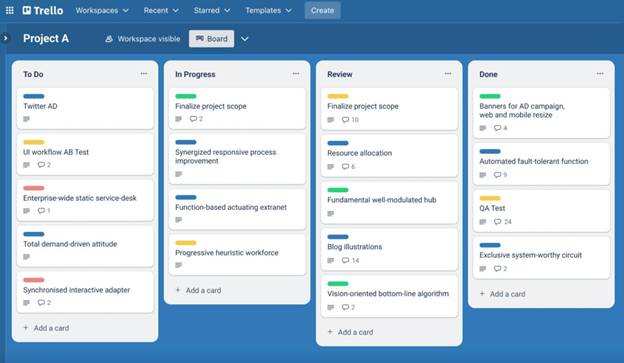
Trello
3. Trello
Task tracking and team coordination
Visualise work by status, assign responsibilities, track deadlines and automate repetitive board actions. Useful for campaigns, project delivery, event planning and editorial calendars.
Website: trello.com
Otter.ai
4. Otter.ai
Meeting transcription and follow-up
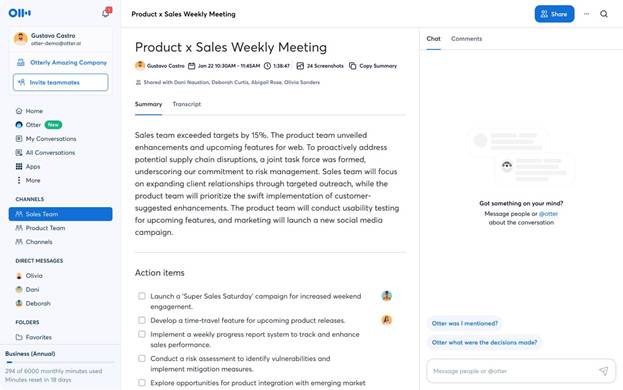
Transcribe supported meetings, generate summaries and identify action items. This can reduce the time spent writing minutes and chasing decisions. Check participant consent, organisational policy and data-handling requirements before recording.
Website: otter.ai
Calendly
5. Calendly
Scheduling and appointment booking
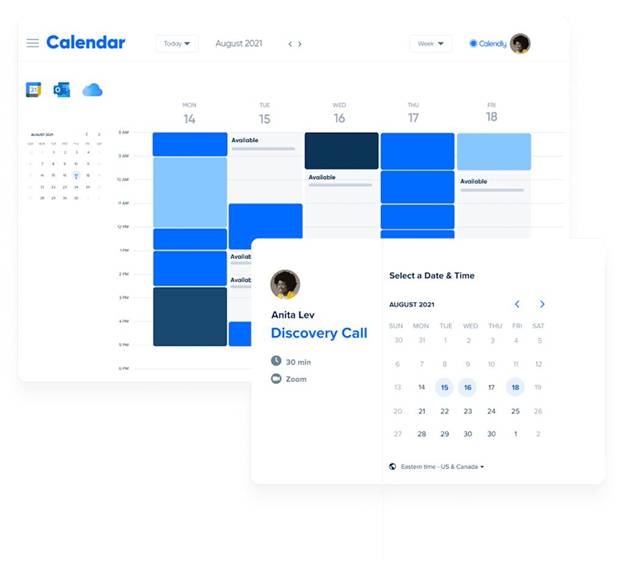
Share your availability so clients and colleagues can book appropriate times without long email exchanges. Calendar connections, buffers and booking limits help protect your schedule.
Website: calendly.com
6. Microsoft Power Automate
Automating repetitive office processes
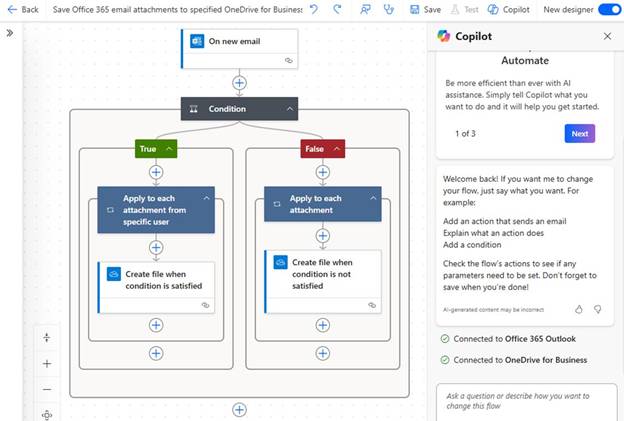
Create workflows that move information between supported apps, send notifications, organise approvals or run scheduled tasks. Best for professionals who repeatedly perform the same steps across Microsoft 365 or connected systems.
Website: powerautomate.microsoft.com
7. Canva
Presentations, reports and visual communication
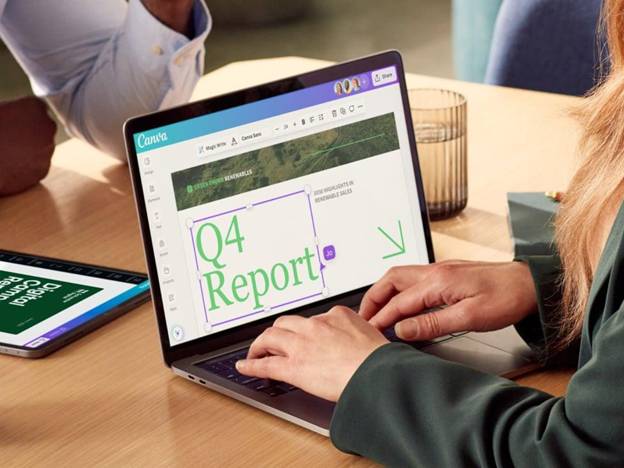
Use templates to produce presentations, project briefs, impact reports and infographics without designing every document from scratch. Maintain consistent branding across recurring deliverables.
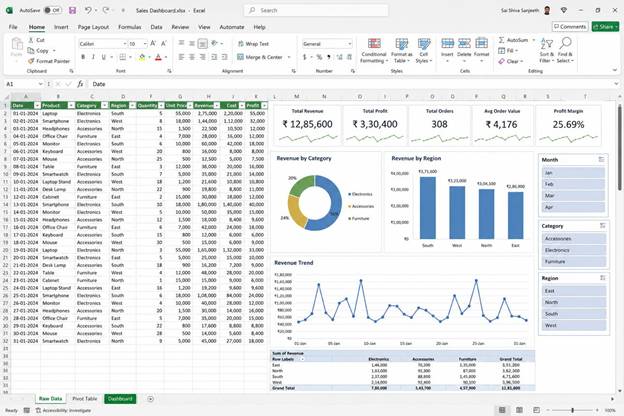
8. Microsoft Excel
Calculations, budgets and analysis
Use formulas, filters, pivot tables and charts to reduce manual reporting, monitor budgets and identify trends. Often, learning a few advanced spreadsheet functions saves more time than adopting another new app.
Website: microsoft.com/microsoft-365/excel

9. Microsoft Power BI
Dashboards and recurring performance reports
Connect suitable data sources, visualise key performance indicators and build reports that can be refreshed instead of manually recreated. It is especially useful when you have recurring reports and reliable underlying data.
Website: powerbi.microsoft.com

10. ChatGPT
Research support, drafting, analysis and problem-solving
Use it to structure proposals, summarise documents, brainstorm options, develop project plans, analyse supplied data and turn rough notes into clear communication. Verify factual claims, figures and recommendations before using them in professional decisions.
Website: chatgpt.com
2. Match the tool to the time-wasting task
Rather than subscribing to everything, identify your biggest recurring bottleneck.
| If you regularly… | Start by exploring… |
| Rewrite similar emails and reports | ChatGPT or your existing office suite’s AI |
| Lose track of deadlines and assignments | Trello or Notion |
| Spend too long writing meeting minutes | Otter.ai or built-in meeting notes |
| Exchange many messages to arrange meetings | Calendly |
| Copy information between apps | Power Automate |
| Recreate the same presentation every month | Canva templates |
| Compile reports from spreadsheets manually | Excel, Power Query or Power BI |
| Search through scattered project documents | A centralised workspace and searchable document repository |
The most important point is that these tools solve different problems. Buying an AI writing tool will not fix a badly organised project workflow. A project board will not automatically make poor data reliable. Technology works best when the underlying process is clear.
3. A practical example: reclaiming time in one working week
Imagine a professional who repeatedly spends time on administrative tasks. The following is an illustrative target for a redesigned workflow, not a guarantee of savings.
Email drafting and summaries
30 minutes saved
0.5 hr
Meeting notes and action lists
45 minutes saved
0.75 hr
Recurring reports and dashboards
60 minutes saved
1 hr
Scheduling and task coordination
30 minutes saved
0.5 hr
Illustrative weekly total
If these reductions are achieved and do not overlap
2.75 hours
Even modest improvements can add up. The objective is to measure your own time before and after adopting a tool rather than assume the advertised benefit will translate directly into your work.
4. How to introduce technology without creating more work
A simple five-step approach is usually more effective than a wholesale digital makeover.
- Track your time for one week. Identify the tasks you repeat, how often they occur and how long they take.
- Choose one problem. Start with the task that consumes the most time or creates the most errors.
- Test one suitable tool. Use a small, low-risk task before building a complicated workflow.
- Measure the result. Compare time taken, errors, quality and ease of use with the previous process.
- Keep, improve or discard it. If the tool introduces more steps than it removes, it may not be the right solution.
One further caution: do not upload confidential client information, employee records, financial data or internal company documents into an unapproved service. Check your organisation’s policies, access controls, data-retention terms and AI rules before connecting tools or automating workflows.
THE LION TAKE
Technology should not simply help you produce more work. It should help you spend less time on repetitive work and more time on the decisions, relationships and ideas that make you valuable.
You do not need 20 apps. You need a small set of tools that work together, solve real problems and earn their place in your working day.
The real productivity question is not, “Which tool is everyone using?”
It is, “Which part of my working week should no longer require so much manual effort?”